Stream Deck Alternatives: Control OBS for Free or Cheap
Quick answer: start with OBS’s built-in hotkeys, which are free and need no extra hardware. If you want touch buttons, put Stream Deck Mobile (6 free keys) or Touch Portal (free 4×2 grid) on a spare phone or tablet. Buy hardware only once you know which buttons you actually press every stream.
The options compared
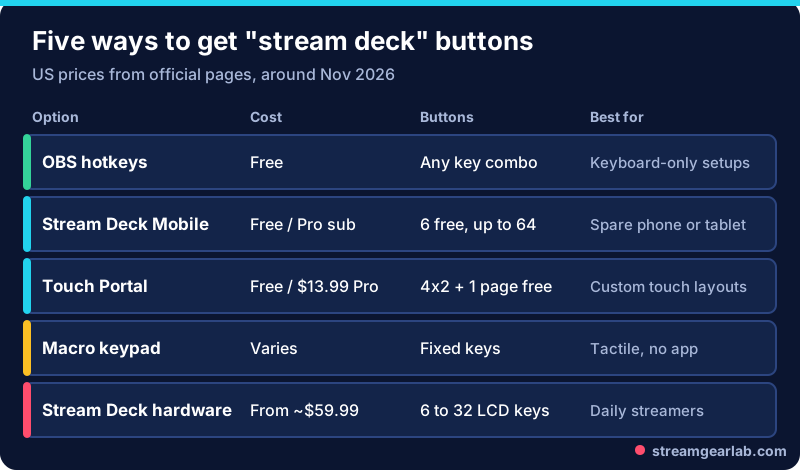
| Option | Price (US, around Nov 2026) | What you get | Watch out for |
|---|---|---|---|
| OBS hotkeys | Free | Any keyboard shortcut for scenes, mute, record and more | No labels. Easy to hit the wrong key |
| Stream Deck Mobile | Free for 6 keys. Pro is $2.99/month, $24.99/year or $49.99 lifetime | Up to 64 keys with Pro, on iOS or Android | Needs the Stream Deck desktop app |
| Touch Portal | Free (4×2 grid, one extra page). Pro is a one-time $13.99 | Custom layouts and plugins | Check which features need Pro before you build your layout |
| Macro keypad | Varies | Physical keys that send shortcuts OBS can use | No screens. Label the keys yourself |
| Elgato Stream Deck | Mini $59.99, Neo $99.99, MK.2 $149.99 (Elgato US store) | LCD keys with live icons | The price. Sales often change it |
Prices come from the official pages linked below, checked November 1, 2026. Check again before you buy, because they change often.
Step 1: Set up free OBS hotkeys (5 minutes)
- Open Settings → Hotkeys.
- Find each scene by name and set “Switch to scene” to a key combo, for example Ctrl+Shift+1 to 4.
- Set Push-to-mute or Mute/Unmute for your mic. Being able to mute instantly is the most important control you have live.
- Add Start/Stop Streaming and Start/Stop Recording, but give them awkward combos so you can’t trigger them by accident.
- Write the shortcuts on a sticky note until you’ve learned them.
That covers the core controls most new streamers buy a Stream Deck for.
Step 2: Add touch buttons with a phone or tablet
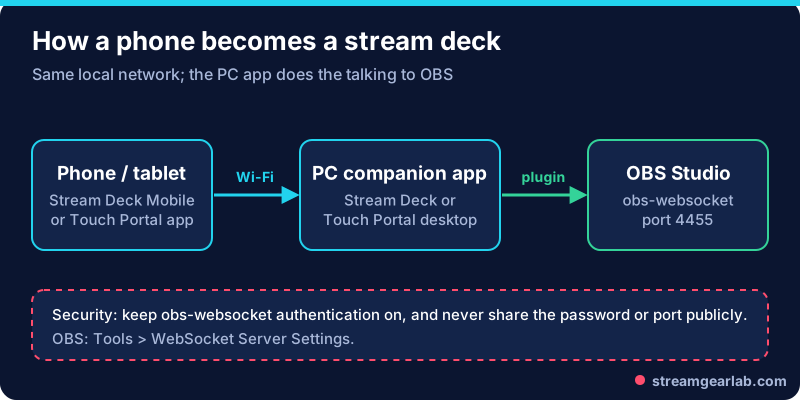
Since version 28, OBS has had obs-websocket built in. It is the remote-control interface these apps use.
- In OBS, open Tools → WebSocket Server Settings. Tick Enable WebSocket server, keep Enable Authentication on, and note the port (default 4455) and password.
- Install the desktop app (Stream Deck or Touch Portal) on your PC and the matching app on your phone. Make sure both devices are on the same network.
- Connect the desktop app to OBS with the port and password, then pair your phone.
- Build a page with your four essentials: Scene: Main, Scene: BRB, Mic mute, Start/Stop recording.
Keep the WebSocket password private, and never show the settings window on stream. Anyone who can reach that port with the password can control your OBS.
Step 3: Decide whether hardware is worth it
Buy physical keys when:
- You’re live several times a week and fumble with the mouse.
- You want buttons that react live (a red mic icon when you’re muted).
- You use your phone for chat or as a camera, so it can’t double as a controller. If that’s you, see our phone-as-webcam guide.
Otherwise put that money into the things viewers notice first: audio and lighting. Our USB vs XLR microphone guide is a good place to start.
Free tool: The Streaming Gear Budget Builder shows where a stream deck fits in your total budget compared with a mic, camera and lights.
A starter button layout
| Row | Button 1 | Button 2 | Button 3 | Button 4 |
|---|---|---|---|---|
| Scenes | Starting Soon | Main | Just Chatting | BRB |
| Audio | Mic mute | Desktop audio mute | Music on/off | Alert volume |
| Utility | Start recording | Clip/marker | Chat-only mode | Stop stream (hold) |
Not sure which scenes you need? Our first stream checklist covers the four basic scenes.
Frequently asked questions
Is Stream Deck Mobile really free?
Yes. Elgato says the six free keys are yours to keep, with no trial period. The Pro subscription or lifetime purchase raises the limit to 64 keys.
Do I need Streamer.bot or other tools?
Not to start. Scene switching, muting and recording work with hotkeys or a phone app alone. Automation tools are useful later, once you know what you want to automate.
Can a cheap macro keypad control OBS?
Yes, if it can send keyboard shortcuts. Set the same shortcuts in OBS Settings → Hotkeys. Test them while your game has focus, because some games and apps grab keyboard input.
Is it safe to open the WebSocket port?
Keep it on your home network only, with authentication on. Don’t forward the port on your router.