1080p60 vs 720p60 vs 1080p30: Which Stream Settings Should You Use?
Quick answer: for Twitch, stream 1080p60 at 6,000 kbps only if your upload stays above about 8 Mbps and you have a modern hardware encoder. Otherwise 720p60 at 4,500 kbps is the better choice for games, and 1080p30 at 4,500 kbps is better for chatting, art and other slow content. With less than about 6 Mbps of upload, use 720p30 at 3,000 kbps.
Official bitrates by platform
These are the platforms’ own numbers for H.264, checked in November 2026.
| Setting | Twitch | YouTube (min – recommended) | Kick (suggested range) |
|---|---|---|---|
| 1080p60 | 6,000 kbps | 6,000 – 17,000 kbps | 6,000 – 8,000 kbps |
| 1080p30 | 4,500 kbps | 5,000 – 14,000 kbps | 4,500 – 6,000 kbps |
| 720p60 | 4,500 kbps | 3,000 – 8,000 kbps | 3,500 – 5,000 kbps |
| 720p30 | 3,000 kbps | 3,000 – 8,000 kbps | 2,500 – 4,500 kbps |
| Rate control | CBR | CBR | CBR |
| Keyframe interval | 2 s | 2 s (max 4) | 2 s |
Twitch’s practical limit for most channels is 6,000 kbps, so on Twitch the question is how best to spend those 6,000 kbps. YouTube re-encodes every stream into lower qualities for viewers, so it rewards higher bitrates if your upload can carry them. Kick caps streams at 8,000 kbps and 1080p60.
Why 1080p60 can look worse than 720p60
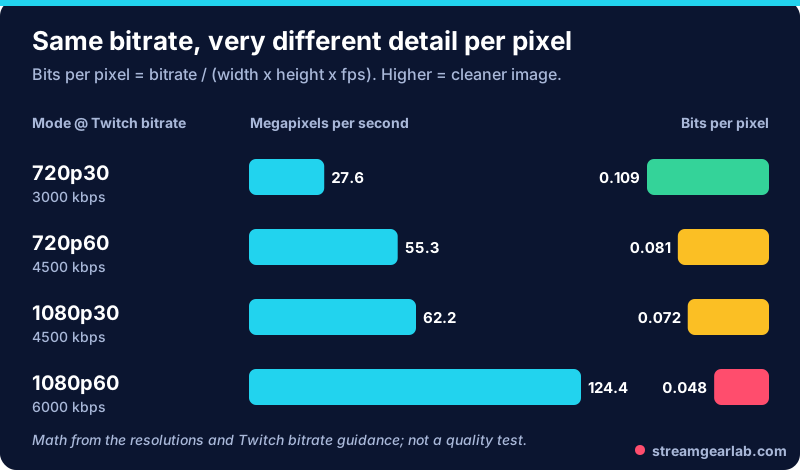
1080p60 has to describe more than twice as many pixels per second as 720p60, on a bitrate that is only a third higher. In fast scenes the encoder runs out of bits, and the picture turns blocky.
Rules that follow from the math:
- Fast motion (shooters, racing, sports): keep 60 fps and drop to 720p before you drop the frame rate.
- Slow motion (Just Chatting, art, card and strategy games): 1080p30 gives sharper text and faces for the same 4,500 kbps.
- Lots of on-screen text (coding, spreadsheets): prefer 1080p, at 30 fps if bitrate is tight.
Pick yours in 30 seconds
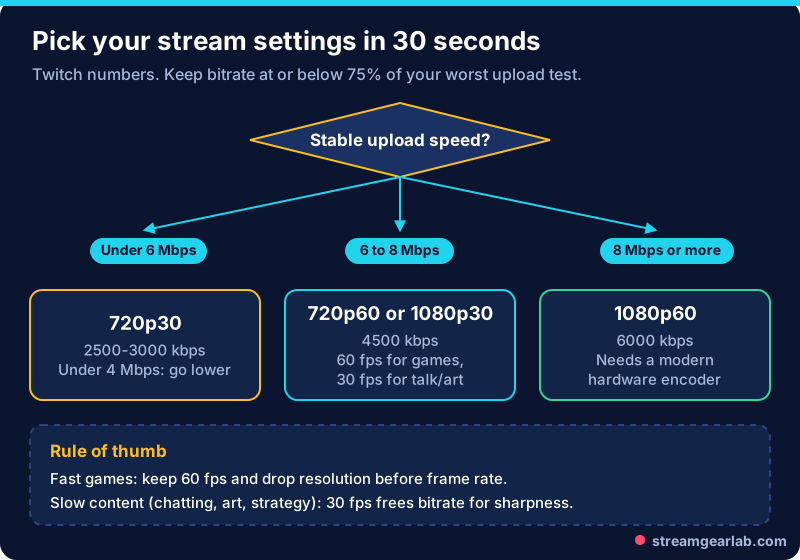
Upload speed sets the ceiling. The OBS knowledge base suggests starting with a bitrate of about 75% of your upload, and Twitch suggests about 30% headroom. If you see dropped frames, follow our dropped frames fix guide before you change resolution.
Set it up in OBS
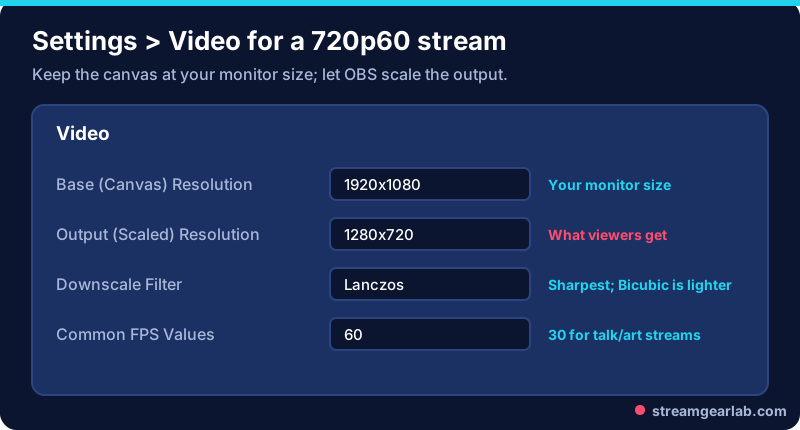
- Settings → Video: leave Base (Canvas) at your monitor size. Set Output (Scaled) to 1280×720 or 1920×1080. Choose the Lanczos downscale filter, or Bicubic if your GPU is busy. Set Common FPS Values to 30 or 60.
- Settings → Output → Streaming: set Output Mode to Advanced. Pick a hardware encoder if you have one (NVENC, AMD, Intel QSV or Apple VT). Set rate control to CBR, the bitrate from the table, and the keyframe interval to 2 s.
- Encoder preset: Twitch’s guide suggests the NVENC “Quality” preset. For x264 it suggests a preset between “veryfast” and “medium”. Slower presets look better but use far more CPU.
- Do a short test stream and watch View → Docks → Stats. If encoding lag climbs, drop to 720p or 30 fps.
Free tool: The OBS Settings Generator builds this whole list for your platform, upload speed and encoder. The Upload Speed & Bitrate Checker tells you which rows your connection can carry.
Encoder matters more than you think
The OBS knowledge base recommends hardware encoders on modern GPUs, and names NVIDIA’s 6th-generation NVENC (Turing, GTX 1650 rev 2 and newer) as the point where quality gets very good. Older hardware encoders trade quality for speed, and 1080p60 makes that trade-off more visible. On an older laptop or GPU, 720p60 is the safer choice. Our laptop OBS settings guide goes deeper.
Frequently asked questions
Can I stream 1440p on Twitch?
Twitch’s Enhanced Broadcasting can send higher-quality renditions, including 1440p for Affiliates and Partners with a supported setup. For a regular single-rendition stream, Twitch’s guidelines top out at 1080p60 and 6,000 kbps.
Is 720p60 good enough in 2026?
For fast games on a 6,000 kbps cap, often yes, because motion stays cleaner. Many viewers also watch on phones, where the gap between 720p and 1080p is small.
What about 900p60?
It works. Set the output to 1600×900 as a middle ground between 720p60 and 1080p60. It isn’t in the platforms’ tables, so test it with a recording first.
Does a higher bitrate always look better?
Only up to the platform’s limit and your upload’s limit. Going past either one causes dropped frames and buffering, which look far worse than a softer picture. Comparing platforms? See Twitch vs YouTube vs Kick for new streamers.