How to Use Your Phone as a Webcam for Streaming (iPhone and Android)
Quick answer: a recent phone’s rear camera usually beats a budget webcam, and you probably own one already. On a Mac with an iPhone, use Apple’s free Continuity Camera. On Windows 11 with an Android phone, use the free Phone Link camera feature. For any other combination, use DroidCam or Camo. Then add the phone in OBS as a normal Video Capture Device.
Choose your method
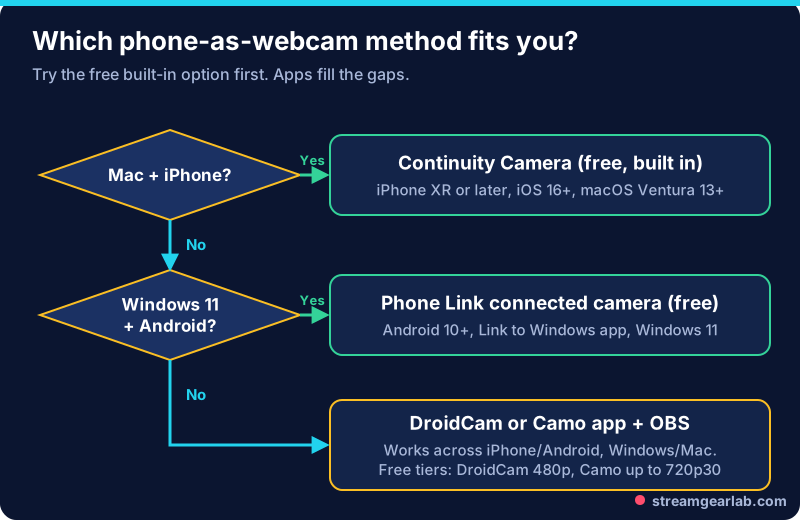
| Method | Works with | Cost | Key requirements |
|---|---|---|---|
| Continuity Camera | iPhone + Mac | Free, built in | iPhone XR or later on iOS 16+, macOS Ventura 13+, same Apple Account with 2FA, Wi-Fi and Bluetooth on |
| Phone Link connected camera | Android + Windows 11 | Free, built in | Android 10+, Link to Windows app 1.24022.0 or later |
| DroidCam | Android or iPhone + Windows/Mac/Linux | Free tier at 480p. Pro (one-time or yearly) for 720p/1080p | DroidCam OBS plugin needs OBS 32+ on Windows. Wi-Fi or USB |
| Camo | iPhone or Android + Mac/Windows | Free up to 720p30. Pro for up to 4K and 60 fps | Camo app on iOS 15+ / Android 7+. Camo Studio on macOS 12.3+ or Windows 10+ |
Requirements and tiers come from each vendor’s page, checked in November 2026. Check them again before you pay for anything.
Option 1: iPhone on a Mac (Continuity Camera)
- Sign in to the same Apple Account on both devices, with two-factor authentication on. Turn on Wi-Fi and Bluetooth.
- Mount the iPhone locked, stable, with the rear camera facing you. Apple’s guide says it must be mounted and still for the camera to switch on automatically.
- In OBS, add a Video Capture Device and choose your iPhone from the device list.
- Plug in a cable if you can. It works wirelessly too, but a cable keeps the phone charged during long streams.
Option 2: Android on Windows 11 (Phone Link)
- Pair your phone in Phone Link and update the Link to Windows app on the phone.
- Go to Settings → Bluetooth & devices → Mobile devices, open your device, and turn on “Use as a connected camera”.
- In OBS, add a Video Capture Device and select the phone’s camera.
Phone Link works over your network, so put the PC on Ethernet and the phone on 5 GHz Wi-Fi if you can.
Option 3: DroidCam or Camo (any combination)
- DroidCam has a free OBS plugin that adds the phone straight into OBS as a source, over Wi-Fi or USB. The free tier is limited to 480p. Pro unlocks 720p and 1080p.
- Camo runs a desktop app (Camo Studio) that you then select as a camera in OBS. The free tier goes up to 720p at 30 fps. Pro adds up to 4K and 60 fps.
Either way, use USB when you can. It powers the phone and gives a steadier signal than Wi-Fi.
Get the setup right
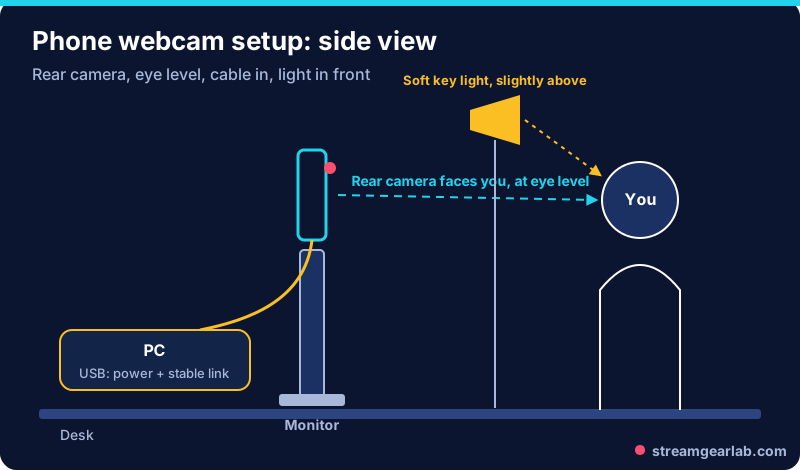
- Use the rear camera. It is usually the phone’s best lens and sensor. You won’t be able to see the phone’s screen, so frame the shot using the OBS preview.
- Mount it at eye level above or beside your monitor, with a cheap phone clamp or a small tripod.
- Turn on Do Not Disturb so calls and notifications don’t interrupt the feed.
- Watch the heat. Long streams with the screen and camera on can warm a phone up. Take the case off, and avoid charging it in direct sunlight.
- Light your face. Any camera looks noisy in a dark room. Our budget lighting guide for small rooms covers a simple setup.
When to upgrade to a real camera
A phone is a great first camera. Move up when you want a camera that stays on the desk permanently, optical background blur, or no battery and heat worries. Our webcam vs mirrorless camera guide explains when each one makes sense. Plan the spend with the Streaming Gear Budget Builder.
Frequently asked questions
Does using my phone as a webcam add delay?
There can be a small delay, especially over Wi-Fi. If your lips look out of sync, add a delay to your microphone in OBS (Edit → Advanced Audio Properties → Sync Offset) until speech matches.
Can I use an old phone?
Yes, if it meets the app’s requirements. An old phone you no longer carry is ideal, because it can stay mounted on the desk. Check the minimum iOS or Android version in the table above.
Will this drain my battery?
Yes, so plug it in. A wired USB connection both powers the phone and keeps the video signal stable.
Why does OBS show a black box instead of my phone?
Another app (Zoom, Teams, the vendor’s own app) may be holding the camera. Close it, then deactivate and re-activate the source in OBS. More fixes are in our OBS black screen guide.