How to Add Alerts and Overlays in OBS (StreamElements or Streamlabs)
Quick answer: alerts and overlays are web pages. Build them in a free service (StreamElements or Streamlabs), copy the private widget URL, and paste it into an OBS Browser Source sized to your canvas (usually 1920×1080). Put it at the top of your Sources list, then send a test alert.
How alerts reach your viewers
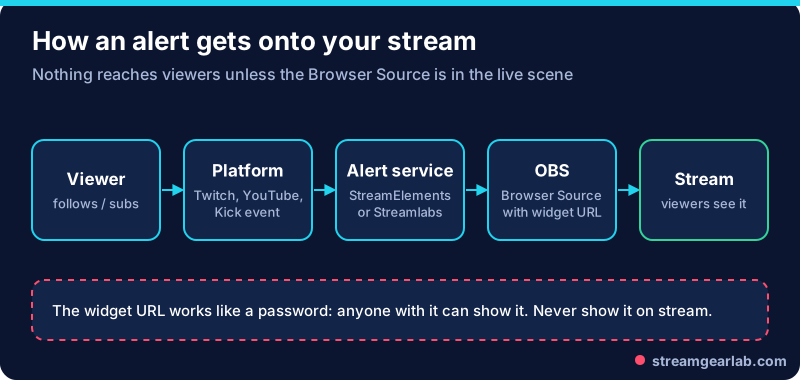
Your alert service watches your Twitch, YouTube or Kick account for events. When someone follows, the service updates the widget page, and OBS draws that page on top of your scene. There’s no plugin to install: the Browser Source is built into OBS on Windows, macOS and the official Linux packages.
StreamElements vs Streamlabs
| StreamElements | Streamlabs (web widgets) | |
|---|---|---|
| Cost to start | Free | Free (paid Ultra plan adds extras) |
| Where you build it | Dashboard → My Overlays (one overlay can hold many widgets) | Dashboard → Alert Box (one URL per widget) |
| How it gets into OBS | Copy the overlay URL into a Browser Source | Copy the widget URL into a Browser Source |
| Good for | One URL for your whole layout | Quick single alert box |
Both work with plain OBS Studio. You don’t need Streamlabs Desktop to use Streamlabs widgets.
Step 1: Build the alert
StreamElements: open My Overlays, create a new overlay at 1920×1080, add an AlertBox widget, and choose which events trigger it (follow, sub, cheer, raid). Save it.
Streamlabs: sign in on the website, open Alert Box, choose your event types and style, and save.
Start simple: one sound, one short animation, and a short message. Loud, long alerts get old fast for viewers.
Step 2: Add it to OBS
- Copy the URL. In StreamElements, use the ⋯ menu → Copy URL on your overlay. In Streamlabs, use the Widget URL at the top of the Alert Box page.
- In OBS, select your Main scene, click + under Sources, choose Browser, and name it “Alerts”.
- Paste the URL. Set Width 1920 and Height 1080 to match your canvas (Settings → Video → Base Resolution).
- Leave the default Custom CSS. It keeps the background transparent.
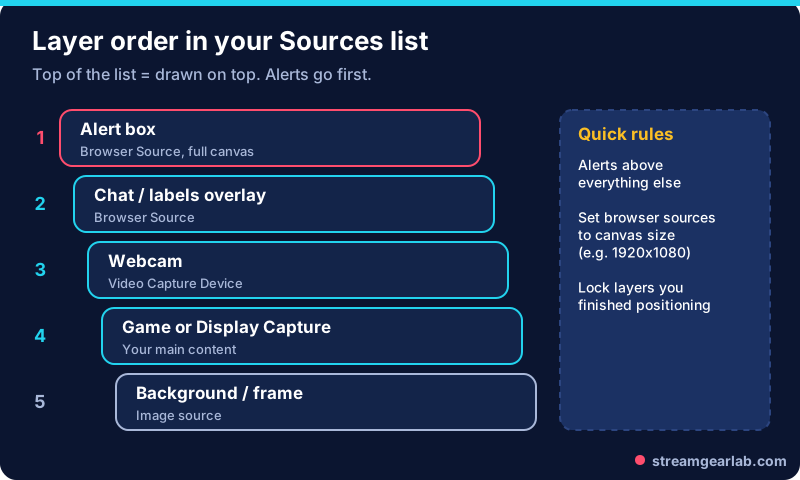
- Click OK, then drag “Alerts” to the top of the Sources list.
Tip: to reuse the same alert in every scene, right-click it, choose Copy, then in each other scene use Paste (Reference). Every scene then shares one copy, so you only edit it once.
Step 3: Test it
Use the test/emulate buttons in the StreamElements or Streamlabs dashboard while OBS is open. You should see and hear the alert in the OBS preview. Check that the alert sound appears on the Desktop Audio or Browser Source meter in the Audio Mixer.
Free tool: Browser sources use CPU and GPU. If you’re on a laptop, run your settings through the OBS Settings Generator to keep some headroom.
Alert not showing? Quick fixes
| Symptom | Likely cause | Fix |
|---|---|---|
| Nothing appears | URL copied wrong, or source is below other layers | Copy the URL again. Move the source to the top |
| Alert is cut off or tiny | Browser Source size doesn’t match the overlay | Set width and height to the overlay size, e.g. 1920×1080 |
| Works in preview, not on stream | Source added to a different scene | Add it to the live scene, or use Paste (Reference) |
| No alert sound | Browser Source audio muted or not routed | Unmute it in the Audio Mixer. Optionally tick “Control audio via OBS” |
| Alert lags or stutters | Browser Source rendering issue | Right-click → Refresh, or toggle Settings → Advanced → Browser Source Hardware Acceleration and restart OBS |
Keep it secure and light
- Treat widget URLs like passwords. Anyone with the link can load your widgets. Never show the properties window on stream. If a URL leaks, look for a reset or regenerate option in your dashboard, or contact the service’s support.
- Use fewer browser sources. Every source is a small Chrome tab. Turn on “Shutdown source when not visible” for overlays you only use in one scene.
- Keep text readable on phones. A lot of viewers watch on small screens, so check your overlay at small size before you go live.
Next, make sure your audio is clean. Our OBS noise reduction guide takes ten minutes, and the first stream checklist covers everything else before you go live.
Frequently asked questions
Do I need Streamlabs Desktop to use Streamlabs alerts?
No. Streamlabs widgets are web pages, so they work in any OBS Studio Browser Source.
Can I use both StreamElements and Streamlabs?
You can, but connect each event type to only one of them, or viewers will see two alerts for the same follow.
Why do my alerts show a black or white box?
Usually the Custom CSS was changed. Restore the default (transparent background) in the Browser Source properties.
Do alerts work on YouTube and Kick?
Both services support YouTube events. Kick support depends on the service and the widget, so check your dashboard’s connected accounts before you build alerts for it.