OBS Black Screen Fix: Display, Window and Game Capture (Windows and Mac)
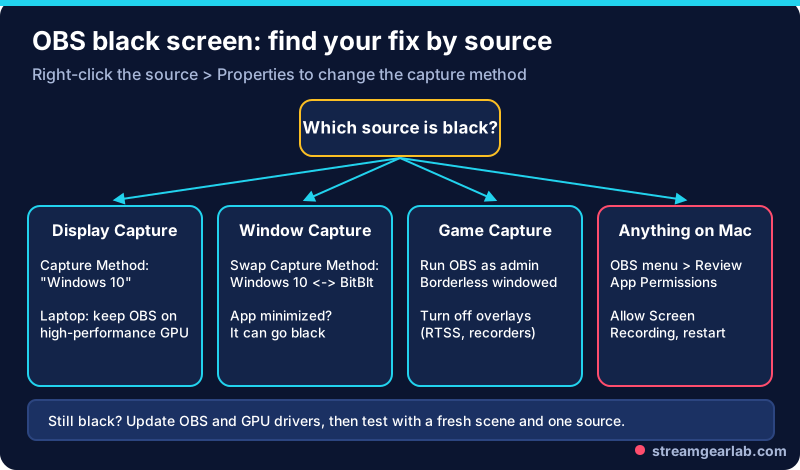
Quick answer: a black capture is almost always the wrong capture method or a missing permission. On Windows, right-click the black source → Properties and change Capture Method (Display Capture: “Windows 10”. Window Capture: switch between “Windows 10” and “BitBlt”). For Game Capture, run OBS as administrator and turn off overlays such as RivaTuner. On a Mac, use macOS Screen Capture and allow Screen Recording in OBS → Review App Permissions.
Find your fix by source
First, check what you’re actually using. Each capture source suits a different job:
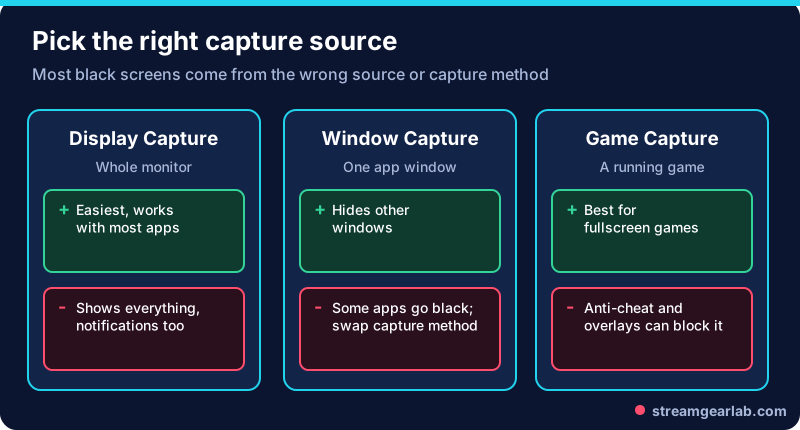
| Source | Platforms | Black screen usually means | First fix |
|---|---|---|---|
| Display Capture | Windows (Mac: deprecated on macOS 13+) | Wrong capture method, often on dual-GPU laptops | Capture Method → “Windows 10” |
| Window Capture | Windows (Mac: use macOS Screen Capture) | App doesn’t work with the current method | Swap “Windows 10” ↔ “BitBlt” |
| Game Capture | Windows | Game blocks the hook, needs admin, or an overlay conflicts | Run as admin, disable overlays, or use Window Capture |
| macOS Screen Capture | macOS 13+ | Screen Recording permission not granted | OBS → Review App Permissions |
Display Capture is black (Windows, especially laptops)
Many laptops have two GPUs. The OBS knowledge base explains that since OBS 27 there is a capture method that works even when OBS and the display run on different GPUs. It needs Windows 10 version 1903 or newer.
- Right-click the Display Capture → Properties.
- Set Capture Method to “Windows 10” (Automatic usually picks it, but set it by hand if the screen is black).
- Keep OBS on the default high-performance GPU. The KB recommends against forcing OBS to “power saving”.
- A yellow border around your screen is normal with this method. It’s only visible to you and doesn’t show on stream or in recordings.
On a laptop, also see our OBS settings for laptop streaming.
Window Capture is black
- Right-click → Properties → Capture Method. If it’s on Automatic or “Windows 10”, try BitBlt, and vice versa. The OBS KB notes BitBlt is less efficient but helps with some programs.
- Don’t minimize the captured window. Many apps stop drawing while minimized.
- If a browser window is black, try the other capture method before changing anything else.
Game Capture is black
From the OBS Game Capture Troubleshooting page:
- Run OBS as administrator. Some games (the KB lists titles such as Call of Duty and Valorant) need it.
- Turn off overlays and FPS counters. The KB names RivaTuner/MSI Afterburner as common conflicts. RTSS 7.3.2+ has a “Use Microsoft Detours API hooking” option for compatibility.
- Use borderless windowed mode with Window Capture for games that block game capture (the KB names Counter-Strike 2 and Destiny 2).
- Fullscreen games stop rendering when you Alt+Tab, so the preview goes black while you’re tabbed out. Check with a test recording instead.
- DX12 issues: if a game offers DX11, the KB suggests trying it.
Black screen on Mac
- Use macOS Screen Capture (macOS 13 or newer). The older Display and Window Capture sources are deprecated there.
- Click the OBS menu → Review App Permissions and enable Screen Recording (plus Camera and Microphone if needed).
- Quit and reopen OBS completely after granting permission.
- Still black? Remove the source and add a new macOS Screen Capture.
Still black? Final checks
- Update OBS and your GPU drivers, then test in a new scene with just one source.
- Check the source isn’t hidden (eye icon) or covered by an image above it in the Sources list. See the layer order in our alerts and overlays guide.
- Webcam or capture card black? Another app may be using it. Close Zoom, Teams or the vendor’s app, then deactivate and re-activate the device in OBS.
- Once the picture’s back, check performance with our dropped frames guide, or get settings from the OBS Settings Generator.
Frequently asked questions
Why is OBS black only when I stream, not in preview?
That’s usually a different problem, such as the source being in a scene you aren’t live in. Check that the scene you’re streaming contains the source.
Is the yellow border going to show on my stream?
No. The OBS KB says the border from the Windows 10 capture method is only visible to you.
Should I force OBS to use the integrated GPU?
Not anymore. With OBS 27+ and an up-to-date Windows, the KB recommends leaving OBS on the high-performance GPU.
Why does my game show for a second then go black?
Usually an overlay, anti-cheat or a fullscreen mode conflict. Try borderless windowed mode with Window Capture.