How to Fix Echo on Stream (and Stop Viewers Hearing Your Voice Twice)
Quick answer: if viewers hear game or Discord sound echoing, your mic is picking up your speakers, so wear headphones. If viewers hear your own voice twice, OBS is monitoring your mic to the same speakers it captures as Desktop Audio. Set your mic to Monitor Off in Edit → Advanced Audio Properties.
Step 1: Work out which echo you have
Record 30 seconds in OBS: talk, play a game sound, and have a friend speak in Discord. Then watch the recording.
| What you hear | Cause | Fix |
|---|---|---|
| Your voice twice, slightly delayed | Mic set to “Monitor and Output” with monitoring going to captured speakers | Monitor Off (Step 2) |
| Game or friends’ voices repeated or hollow | Speakers bleeding into your mic | Headphones (Step 3) |
| Friends say they hear themselves | Your mic sends your speakers back into Discord | Headphones, Discord echo cancellation |
| Everything doubled | Same device added twice (e.g. Desktop Audio plus an Application Audio Capture of the same app) | Remove the duplicate source |
Step 2: Fix the OBS monitoring loop (voice heard twice)
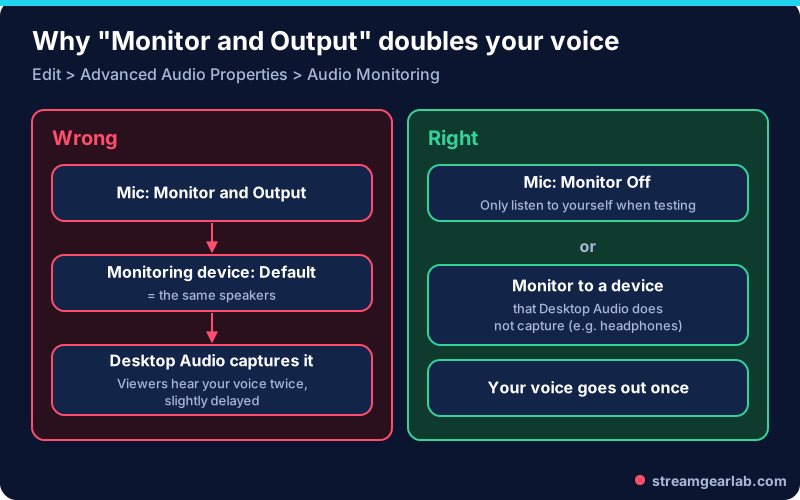
- In OBS, open Edit → Advanced Audio Properties.
- Find your mic in the list and set Audio Monitoring to Monitor Off.
- Check every other source too. Anything you monitor while Desktop Audio captures the monitoring device will be doubled.
- If you need monitoring (to hear a media source, for example), go to Settings → Audio → Advanced → Monitoring Device and choose a device that Desktop Audio does not capture, such as a separate headset output.
The OBS audio mixer guide explains that the monitor button plays a source through the monitoring device set in Settings. That’s why sending it to the same speakers creates the loop.
Step 3: Break the speaker loop (game or Discord echo)
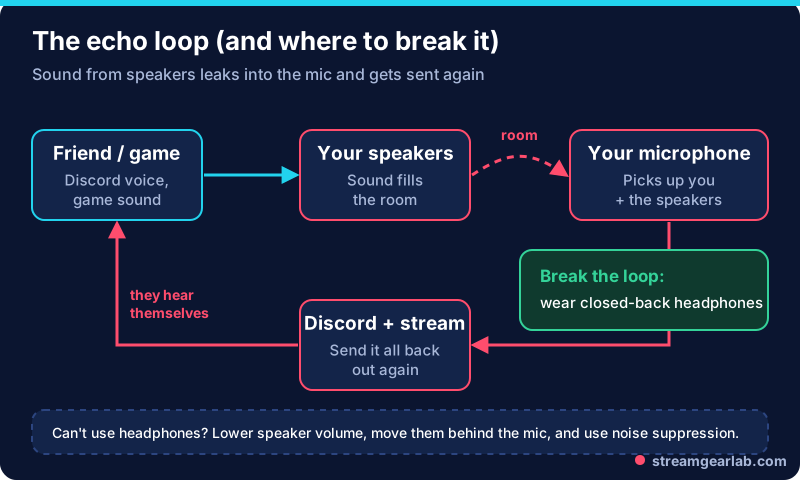
- Wear headphones. Closed-back headphones are best, because less sound leaks back into the mic.
- Can’t use headphones? Turn the speakers down, point them away from the mic, and move the mic closer to your mouth.
- Turn on Discord’s echo cancellation and noise suppression in User Settings → Voice & Video.
- Add a Noise Suppression or Noise Gate filter to your mic in OBS (right-click mic → Filters). It reduces quiet bleed between sentences but can’t remove loud speaker echo. Our OBS background noise guide shows the settings.
Step 4: Check your mic choice
Mic type affects how much room and speaker sound you pick up:
| Mic type | Speaker bleed | Notes |
|---|---|---|
| Dynamic (USB or XLR) | Lower | Picks up mainly what’s close to it. Good in untreated rooms |
| Condenser | Higher | More detailed, but more sensitive to room sound |
| Laptop or webcam mic | Highest | Far from your mouth, so it picks up everything |
If you’re shopping, our USB vs XLR microphone guide explains the trade-offs. You can price a full audio setup in the Streaming Gear Budget Builder.
Still echoing? Less common causes
- Windows “Listen to this device” is on. In Sound settings → Recording → your mic → Properties → Listen, untick it.
- Two capture paths for one app. Desktop Audio plus an Application Audio Capture of the same game means doubled sound. Mute one of them.
- Phone or second device in the room playing your stream. Mute it while live.
- Room reverb (not echo). A hollow, boomy sound in a bare room. Soft furnishings and moving closer to the mic help.
Once the echo is gone, check that your stream encoding isn’t introducing problems. The OBS Settings Generator gives you a solid starting point, and the first stream checklist includes a test recording routine.
Frequently asked questions
Why can’t I hear the echo myself?
The doubled voice happens inside OBS’s output, so only viewers and recordings hear it. Always test with a local recording.
Do I need audio monitoring at all?
Usually not while live. Use it briefly to check a source, then turn it back off, or send it to a device that isn’t captured.
Will noise suppression fix echo?
Only partly. It can reduce quiet bleed, but it can’t reliably remove loud speaker sound. Headphones are the real fix.
Why do my Discord friends hear themselves?
Your mic is picking up their voices from your speakers. Headphones or Discord’s echo cancellation fix it.